Screen Capture & Branded Watermarking
PtView Workstation includes a built-in screenshot tool tailored for traders. Capture either the active chart or the full workstation window with an automatic footer showing the PTView emblem, exchange, symbol, market type, timeframe, and timestamp.
1. Quick Ways to Take a Screenshot
- Global Shortcut (Ctrl + Shift + S): Instantly captures the active chart with the branded watermark and copies it to your clipboard (
Ctrl+Vstraight into Telegram, Discord, or X). - Toolbar Camera Button:
- Normal Click: Opens the Snapshot Options Dialog to choose target, resolution, and save destination.
- Ctrl + Click: Quick-save mode — captures the active chart and immediately prompts to save
.png/.jpg.
- Chart Right-Click Menu: Right-click anywhere on the chart → Capture Screenshot.
- Top Menu Bar: Click Tools → Screenshot.
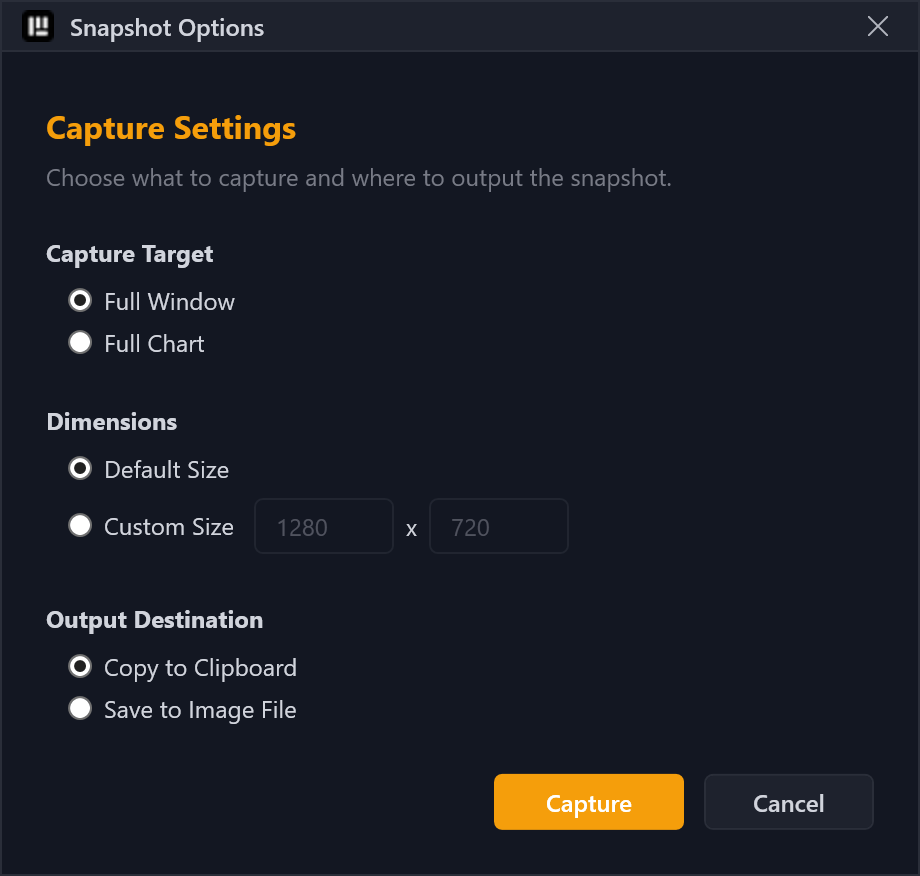
2. Snapshot Options Dialog
- Capture Target:
- Active Chart Pane Only: Isolates candlesticks, overlay indicators, sub-panes (RSI/MACD), and drawings.
- Full Workstation Window: Captures the complete layout including Market Watch, Navigator, menus, and all chart panes.
- Dimensions:
- Original Size: 1:1 native screen pixel resolution.
- Custom Size: Specify custom Width and Height (up to 16,384 × 16,384 px). Filling only one dimension automatically scales the other to keep aspect ratio.
- Output Destination:
- Copy to Clipboard: Ready for instant paste.
- Save to Image File: Export as lossless PNG (
.png) or high-quality JPEG (.jpg).
3. Adaptive 4-Theme Watermark Footer
Every exported screenshot appends a sleek, non-distracting footer bar ([Logo] PtView Workstation | OKX • BTC/USDT (Perp) • 15m 2026-11-11 14:30:00) that adapts to your active theme:
| Theme | Footer Background | Top Border | Brand Text | Metadata Text | Timestamp |
|---|---|---|---|---|---|
| Dark | #181B22 | #2A2E39 | #9CA3AF | #D1D4DC | #6B7280 |
| Midnight | #0B0B0E | #27272A | #A1A1AA | #D4D4D8 | #71717A |
| CyberNavy | #0E1420 | #1E293B | #94A3B8 | #CBD5E1 | #64748B |
| Light | #F4F5F7 | #E0E3EB | #4B5563 | #1F2937 | #6B7280 |
Crisp 4K Exports
For ultra-sharp social or blog graphics, choose Custom Size in the Snapshot Options Dialog and set Width to 3840 and Height to 2160. PTView automatically uses its 256px supersampled logo asset for crisp rendering.