AI API Keys & Accounts Setup Guide
PTView AI Copilot uses Bring Your Own Key (BYOK): you connect your own API key from Google Gemini, OpenAI, DeepSeek, OpenRouter, or run Ollama 100% free and offline on your computer. Your API keys are stored only on your local machine and never uploaded to any PTView server.
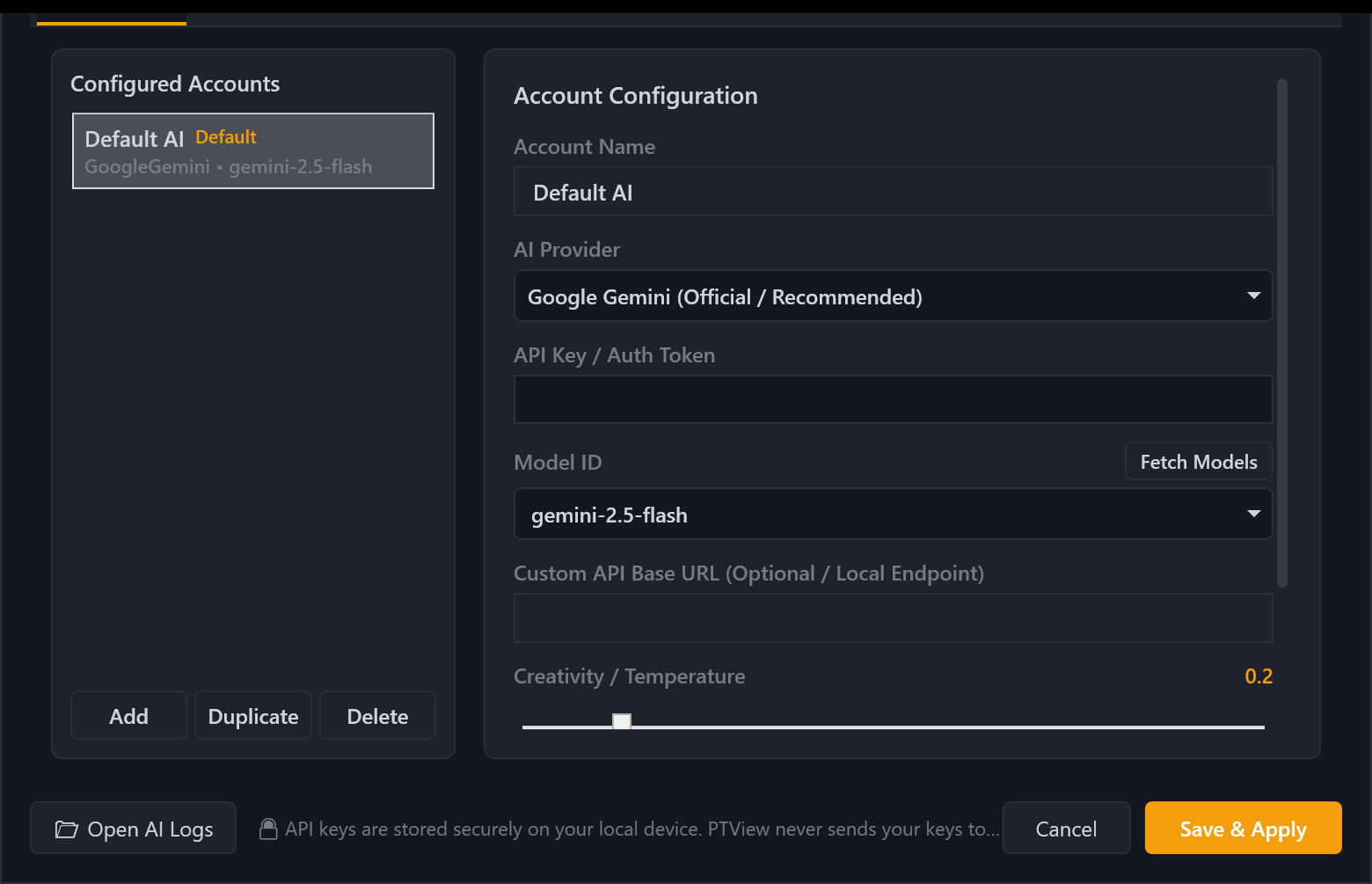
Option 1: Google Gemini (Free Tier Available — Recommended)
Google offers a generous free API tier with fast gemini-2.5-flash responses — ideal for everyday chart analysis.
- Open Google AI Studio and sign in with your Google account.
- Click Create API key (choose an existing Google Cloud project or create a new one in 1 click).
- Copy the generated key (starts with
AIza...). - In PTView, open Tools → AI Settings… → AI Accounts tab.
- Select
Default AI(or click Add), set:- AI Provider:
Google Gemini (Official / Recommended) - API Key / Auth Token: Paste your
AIza...key - Model ID:
gemini-2.5-flash(or click Fetch Models to pick another)
- AI Provider:
- Click Test Connection → verify green success message → click Save & Apply.
Option 2: OpenAI (ChatGPT API)
- Go to OpenAI Platform API Keys and sign in.
- Make sure billing credits are active under Settings → Billing.
- Click + Create new secret key, name it
PTView, and copy thesk-...key. - In PTView Tools → AI Settings…:
- AI Provider:
OpenAI / OpenAI-Compatible - API Key / Auth Token: Paste your
sk-...key - Model ID:
gpt-4.1-miniorgpt-4o(or click Fetch Models)
- AI Provider:
- Click Test Connection → Save & Apply.
Option 3: DeepSeek
- Sign in at DeepSeek Platform and top up API balance.
- Click Create new API key and copy it.
- In PTView Tools → AI Settings…:
- AI Provider:
DeepSeek - API Key / Auth Token: Paste your key
- Model ID:
deepseek-chat(ordeepseek-reasoner)
- AI Provider:
- Click Test Connection → Save & Apply.
Option 4: OpenRouter (One Key for 100+ Free & Paid Models)
- Sign in at OpenRouter Keys and click Create Key.
- In PTView Tools → AI Settings…:
- AI Provider:
OpenRouter - API Key / Auth Token: Paste your
sk-or-...key - Click Fetch Models to browse both free (
:free) and paid models (Claude, Llama, Gemini, GPT).
- AI Provider:
- Click Test Connection → Save & Apply.
Option 5: Ollama (100% Free & Offline Local Models)
Run AI completely offline on your own GPU/CPU with zero API costs:
- Install Ollama for Windows.
- Open PowerShell or Command Prompt and download a tool-calling capable model:
ollama pull qwen2.5:7b
- Make sure Ollama is running (
ollama serveor system tray icon). - In PTView Tools → AI Settings…:
- AI Provider:
Ollama (Local) - API Key / Auth Token: Leave blank (or type
ollama) - Custom API Base URL:
http://localhost:11434/v1 - Click Fetch Models and pick
qwen2.5:7b
- AI Provider:
- Click Test Connection → Save & Apply.
Adding Backup Accounts (Automatic Rate-Limit Failover)
If you use a free-tier key that hits rate limits during busy sessions, add 1 or 2 backup accounts:
- Click Add (or Duplicate) in AI Accounts to add a second Gemini key or fallback provider (e.g. OpenRouter/DeepSeek).
- Switch to the Common & Failover tab in AI Settings and keep Auto-switch account on quota/network failure enabled.
- PTView automatically switches to your backup account during temporary errors or 429 rate limits and cools down the primary key before retrying.
Security & Privacy
API keys are never sent to PTView servers and are automatically masked by SecretRedactor if you ever export a Diagnostics .zip log bundle.