AI Copilot & Chat Commands
PTView includes a built-in AI Copilot (Ctrl + T) that lets you ask questions about market structure, attach indicators, draw support/resistance zones, and schedule background checks in plain language.
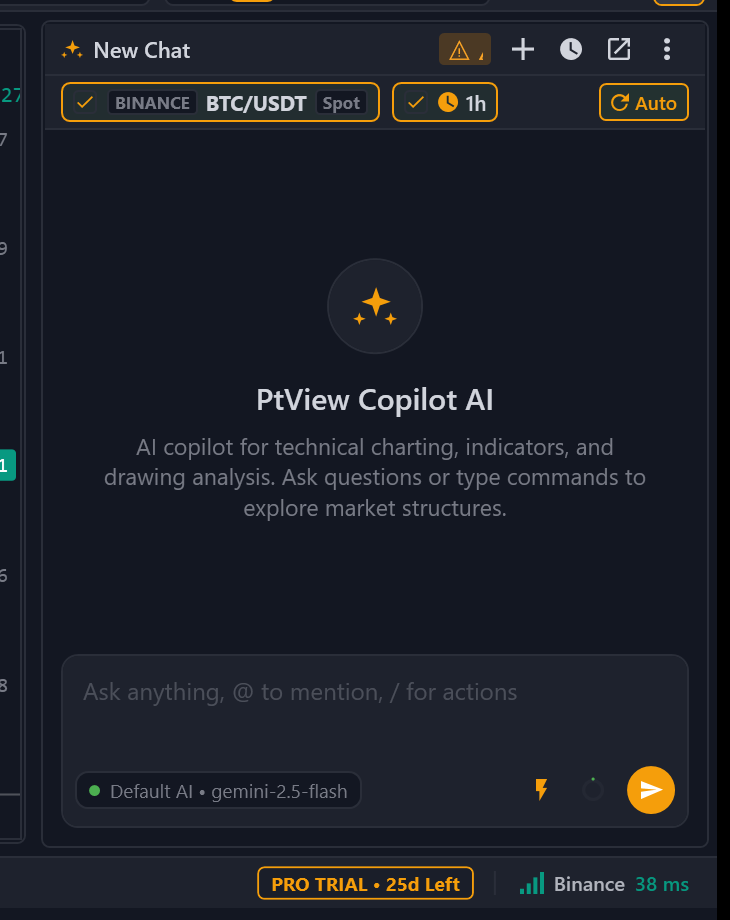
PTView is strictly an analytical charting workstation. Order placement and live exchange trading tools are intentionally excluded from both the in-app AI Copilot and external MCP endpoints.
1. How to Connect Your First AI Account (3 Steps)
PTView uses Bring Your Own Key (BYOK) — you can use free cloud tiers or run models 100% locally on your PC:
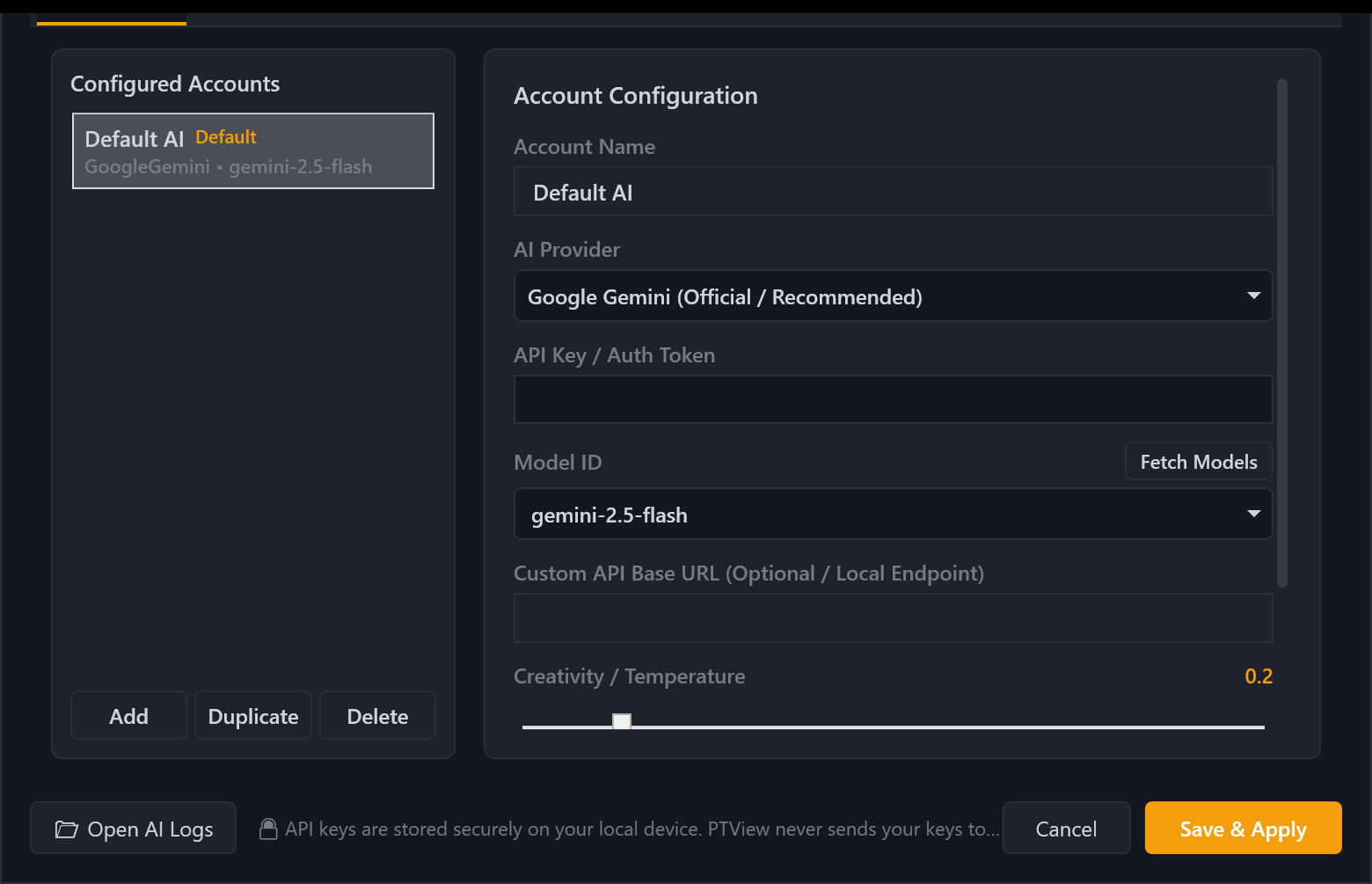
- Open Tools → AI Settings and stay on the AI Accounts tab.
- Click Add Account, choose a provider, and paste your API Key:
- Google Gemini (Free tier available): Create a free key in Google AI Studio and pick
gemini-2.5-flash. - OpenAI / DeepSeek / OpenRouter / Anthropic: Select the provider, paste your API key, and select a model.
- Ollama (100% Free & Offline): Run
ollama servelocally, set Base URL tohttp://localhost:11434/v1, and pick your local model.
- Google Gemini (Free tier available): Create a free key in Google AI Studio and pick
- Click Test Connection → Save. You can also add multiple accounts so PTView automatically fails over if one key hits a rate limit.
- Need help creating a key? Follow AI API Keys & Accounts Setup (step-by-step for Google AI Studio, OpenAI, DeepSeek, OpenRouter, and Ollama).
- Want alerts sent to your phone? Follow Telegram Bot Alerts Setup.
2. How AI Copilot Interacts with Your Chart
3. Everyday Chat Features
Active Chart Context Locks (Symbol & Timeframe)
By default, AI Copilot automatically knows which pair and timeframe you are viewing:
- Symbol Lock ON: Ask "What is the RSI right now?" without typing
BTC/USDTevery time. - Timeframe Lock ON: Defaults to the active chart timeframe; untick it when asking for multi-timeframe (
15m,1h,4h,1d) analysis.
Inline #tool Directives & Quick Ask (⚡)
- Type
#in the chat input to pick any of the 71 MCP tools (e.g.#market_get_candles,#indicators_add,#draws_horizontal_line,#notify_send). - Click the
⚡Quick Ask button to run 1-click analysis templates (Technical Overview, Support/Resistance Levels, Order Book Liquidity, BTC Market Pulse) — customizable under AI Settings → Quick Ask.
Scheduled Background Monitoring (/schedule)
Let AI monitor markets on autopilot and notify you via Telegram or the status bar:
- Recurring Check:
/schedule every 15m check RSI and key support levels --notify - Finite Repeat (
--repeat/xN):/schedule every 30m --repeat 3 monitor funding rate and open interest - One-Shot Reminder (
in/once):/schedule in 10m inspect 4h candle close --notify - Manage Jobs:
/schedule list,/schedule run 1,/schedule pause all,/schedule resume all,/schedule cancel 1
Scheduled jobs run strictly in read-only mode — they can fetch prices, funding rates, indicators, and send notifications, but they never alter your chart drawings or layout. Manage scheduler defaults under AI Settings → Common.
4. Complete Slash Command Reference (21 Commands)
Type / in the AI Chat box to open the command palette:
Session & Schedule Management
| Command | Aliases | Description |
|---|---|---|
/new | /n | Start a new conversation session |
/clear | /cls, /c | Clear all messages in the current session |
/resume [id|title] | /open | Switch to a recent session |
/rename <new_title> | /title | Rename the current conversation session |
/delete | /del, /rm | Delete the current conversation session |
/export [md|json] [path] | /save, /dump | Export conversation to Markdown or JSON |
/compact [instructions] | /summarize | Summarize history to free context window |
/schedule [every|in|list|run|pause|resume|cancel] | /cron, /timer | Schedule or manage read-only background AI monitoring jobs |
Generation Control & Notifications
| Command | Aliases | Description |
|---|---|---|
/stop | /abort, /cancel | Stop the active AI response or tool run |
/retry | /r, /regen | Re-send the last user message |
/notify [on|off|status|bot <alias>] | /telegram, /tg | Toggle or check Telegram notifications |
Tools & Approvals
| Command | Aliases | Description |
|---|---|---|
/tools [filter] | /mcp | List all 71 MCP tools or filter by keyword |
/autoapprove [on|off] | /approve | Toggle automatic approval for low-risk chart actions |
System, Accounts & Context
| Command | Aliases | Description |
|---|---|---|
/help [command] | /h, /? | Show slash command help |
/status | /info | Show active AI account, model, chart context, and Telegram state |
/scope | — | Show active symbol and timeframe locks |
/account [ai|tele [target]] | /acc | List or switch active AI account or Telegram bot |
/model [model_id|reset] | /m | Override model ID for this session |
/context | /ctx | Inspect context window token usage |
/usage | /tokens, /stats | Display token usage statistics |
/logs [lines] | /log | Inspect recent AI & MCP logs |
5. Example Prompts You Can Copy & Try
- "Add EMA 20 in yellow, EMA 50 in blue, and RSI(14) below the chart."
- "Find the major swing high and swing low on 4h and draw a Fibonacci Retracement."
- "What is today's Fear & Greed Index and Binance BTC funding rate?"
- "Analyze the 1h market structure and send a brief summary to my Telegram."
Want VS Code Copilot, Cursor, Claude Desktop, or Antigravity to control PTView charts directly? See the MCP Server & 71-Tool Reference.